

Build a Flow in PXFLOW Studio
Current installed-Component boundary
The production Flow reader currently preserves an exact Component target, raw settings, and usage-derived partial ports in a read-only unsupported Node. @px.component registers companion metadata and annotation-derived ports only. Existing V1 presentation and settings wire remains compatible. The current installer has no safe inactive quarantine, so production third-party Component install admission and activation remain closed. Exact ProjectScope data-path isolation is implemented; authenticated-principal authorization, execution-trust closure, and the production gates remain unimplemented. The successor V2 Canvas mounts only the host-owned component.declarative@2; settings are declared through component-declared-settings@1, at most eight per declaration, and the host draws each control from its own registry. Rich surfaces belong to component-rich-surface-declaration@1, the RFC-016 successor, whose bridge grants reading the Node context and proposing a settings patch and nothing more. The V2 boundary is in Node presentation and third-party UI.
PXFLOW Studio is the visual editor for Flows. Choose shared Functions from Definitions → Functions, place the target as a Node, connect compatible inputs and results, then validate and run the Flow. The installed-Component dock path described below is planned. The Flow picker places an imported separate Flow as a read-only External reference.
A Node is one explicit flow.node("node_key", target) placement in the current Flow. A currently supported executable target is an explicit-key @px.function. Existing V1 Component artifacts can preserve an explicit-key @px.component companion as an exact seven-field target with separate Node keys, connections, and raw settings, but production third-party placement and activation are closed. The current decorator declares no settings schema. Undecorated Python functions remain helpers -- a Function declares them via helpers=[...] so they travel in its revision, a Component keeps them in its executor module -- and do not appear as Canvas Nodes. SDK source uses flow.subflow("subflow_key", imported_flow) for an External reference.
Build your first Flow step by step
This example selects the shared Project Function girder_utilization · v1.0.0, places it in the Girder utilization Flow as the utilization_check Node, connects two Scalar Nodes to its inputs, and keeps the same Flow in view through validation, save, and run readiness.
1. Open PXFLOW from Project Home
Open the Project that will own the Flow, then choose PXFLOW in the upper-right corner.
2. Enter the Flow name and description
Choose New Flow, enter the following values, and select Create Flow.
- Name:
Girder utilization - Description:
Checks utilization from span and design moment. - Stable Flow key:
girder_utilization_flow
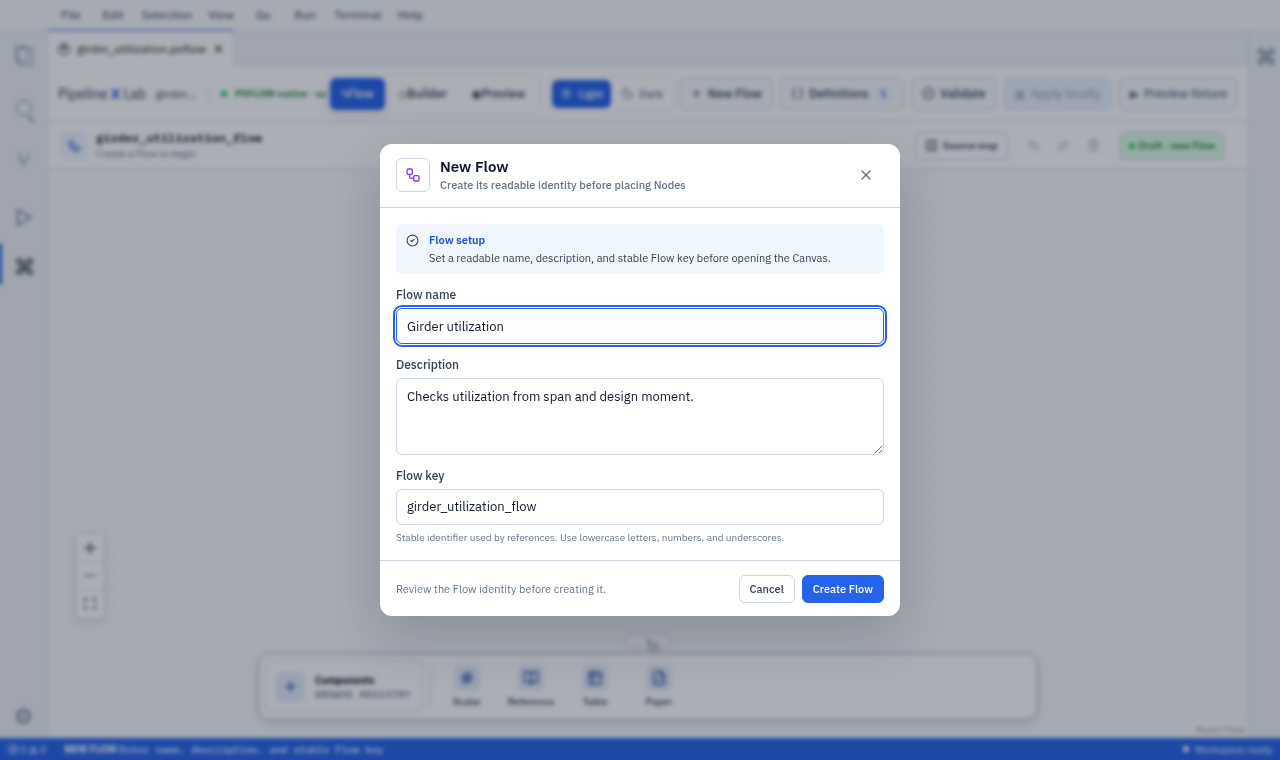
Create Flow creates the named .pxflow document in the active Project.
The display name and description can change later. A flowKey rename affects Components, MCP, and cross-Flow references and therefore requires an impact preview.
3. Choose the shared Function
Open Definitions → Functions from the main toolbar and select girder_utilization · v1.0.0. Confirm the description reads Calculates girder utilization from span and design moment.
4. Review the input and result contract
Open Contract & usage and confirm:
- input
span:float · m - input
design_moment:float · kN.m - result
utilization:float · 1
Its version and these three port contracts complete the pre-placement review for this example.
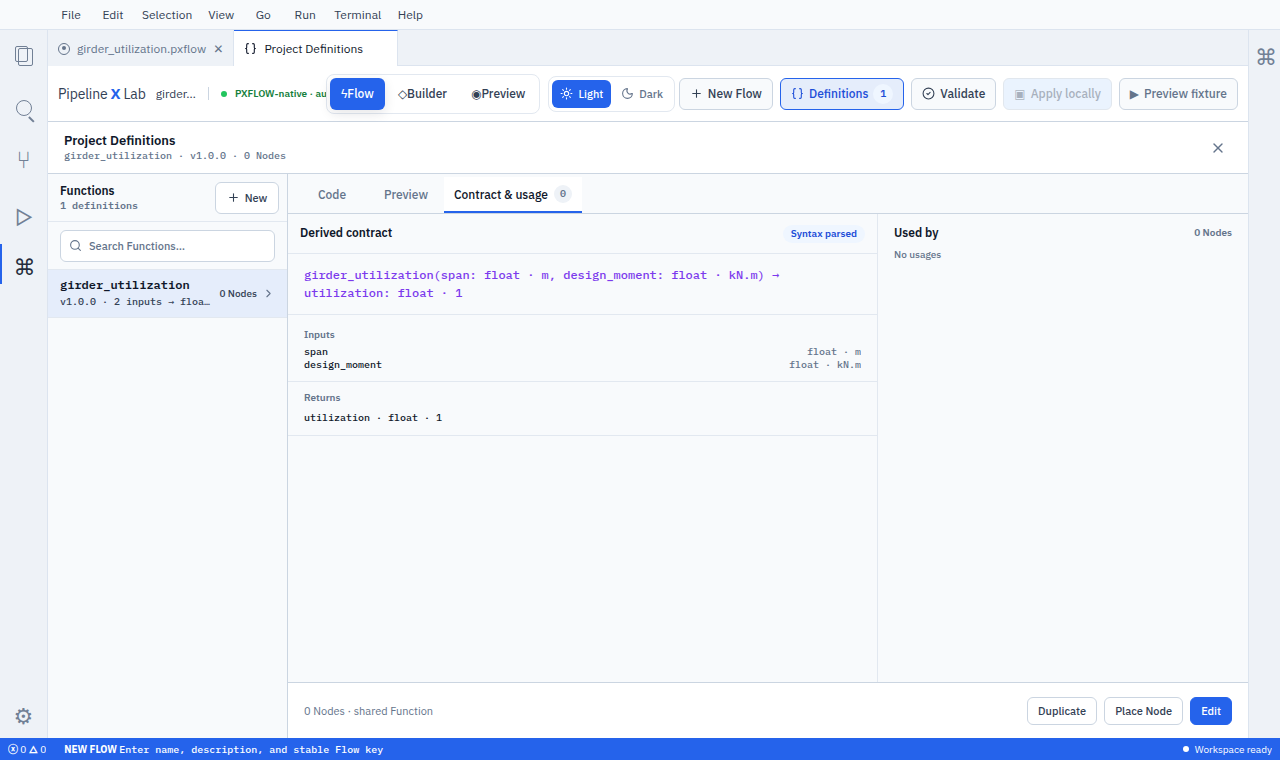
Review the name, type, unit, and version derived from the Function source before placement.
5. Place the Function as a Function Reference Node
Choose Place Node and confirm the target document is girder_utilization.pxflow. Enter the unique Node key utilization_check, then choose Place on canvas.
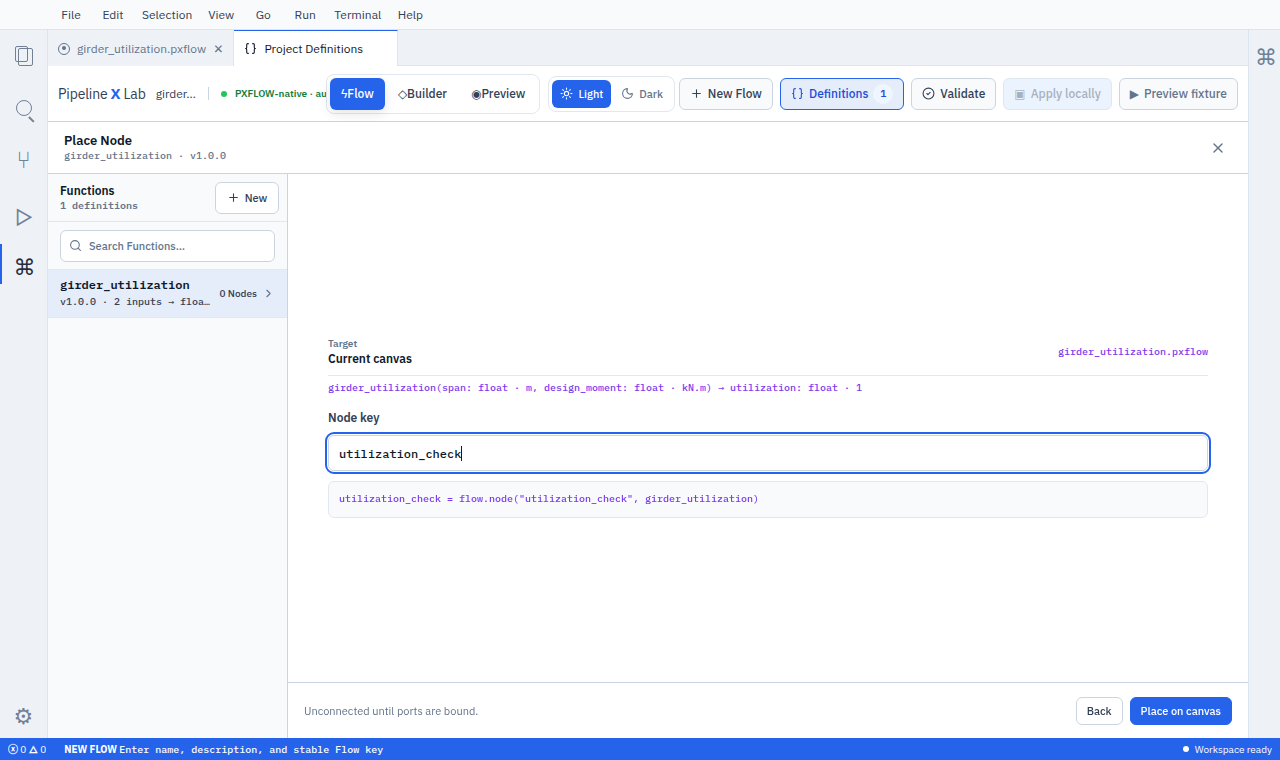
The placement dialog creates a utilization_check Node that references the selected shared Function.
6. Connect compatible ports
Create the span and design_moment public Flow inputs. Connect them to utilization_check.span and utilization_check.design_moment, respectively. Studio checks type and unit compatibility before confirming each connection.
7. Follow Validate → Save → Run
- Choose Validate and confirm
Validated · 0 issues. - Choose Save and confirm the saved revision.
- Confirm that Run is available.
Post-closure plan: start with an admitted Component instead
Exact ProjectScope data-path isolation is implemented. After Project authorization, execution-trust closure, and the V2 package-to-Flow bridge are implemented, you can open the Components dock and choose an admitted Component instead of a shared Function. Review its name, description, inputs, and results, select Add, then follow the same Node-key, connection, validation, and save sequence from step 5.
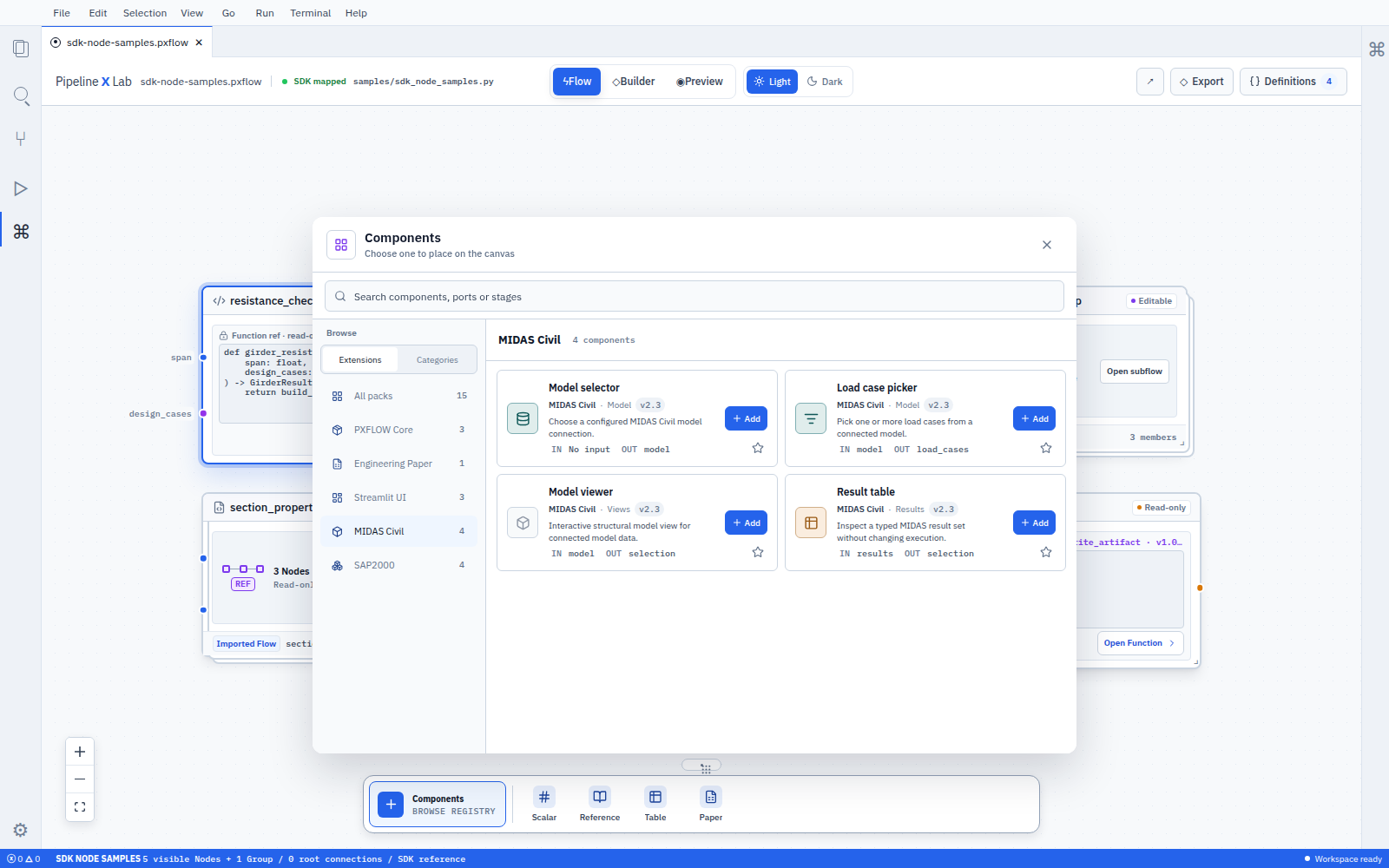
This is a post-closure prototype. Component selection can become the alternative at step 3 only after admission is enabled.
Use the workspace
- The main toolbar opens Flow navigation, Project Definitions, Source map, validation, and Run actions.
- The canvas owns placed Nodes and connections.
- A collapsible Components dock at the bottom may discover and place admitted Components after both closures; this package-backed path is planned.
- Project Definitions is a separate project-wide workspace for shared Functions, Values, and Sources.
- Source map is an optional non-modal sidebar shown beside the canvas.
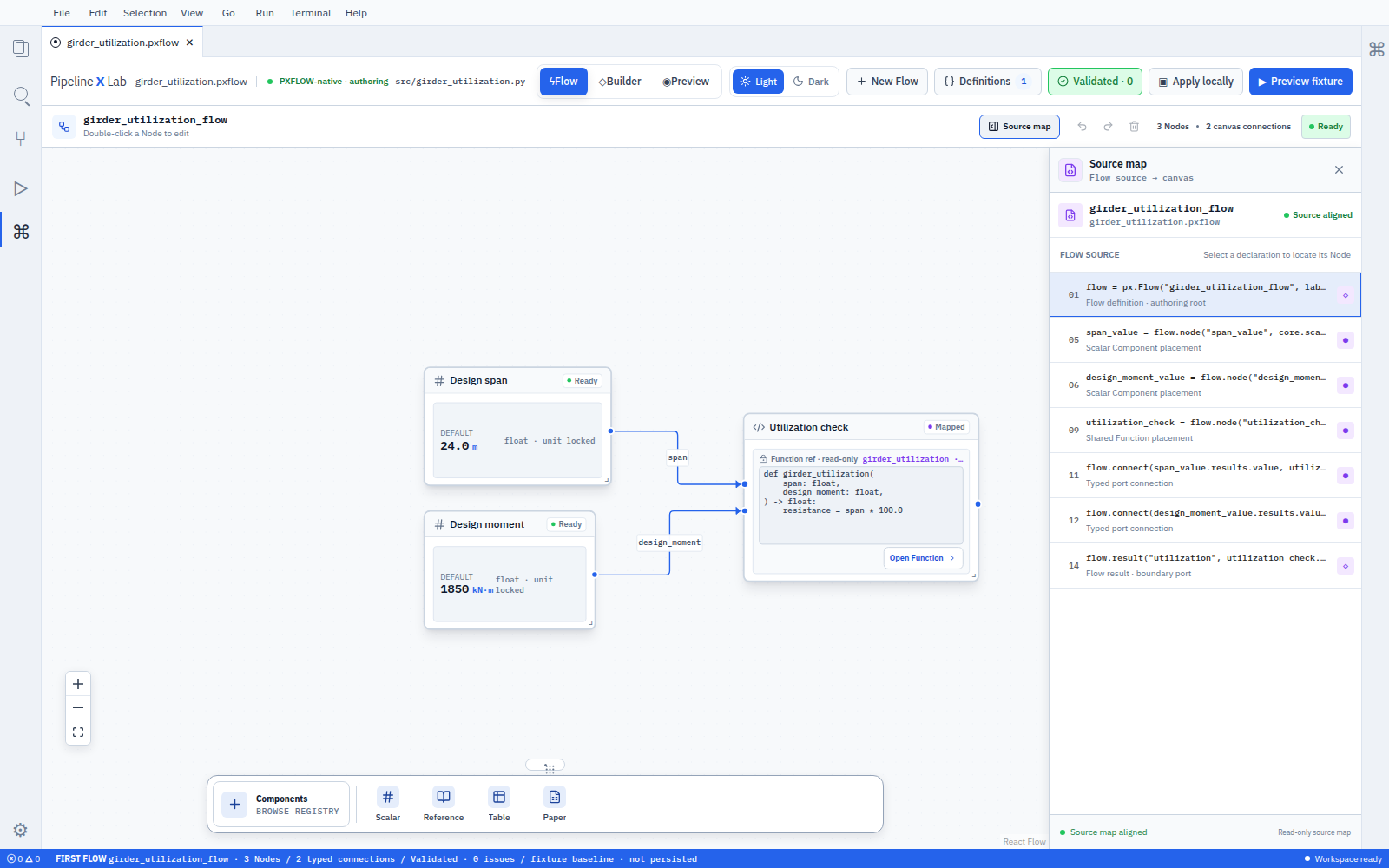
Planned prototype: the non-modal Source map sidebar and the Components dock keep the canvas visible.
Place and connect Nodes
- Choose a shared Function from Project Definitions. The admitted-Component dock path is a post-closure plan. Use the Flow picker for an imported Flow reference.
- Review the target kind, inputs, named results, units, version, and capabilities. For a Component, current V1 raw settings remain preserved. Successor V2 accepts settings declared through
component-declared-settings@1. - Add it to the canvas.
- Give the Node a unique
lower_snake_casekey. - Drag a named result to a compatible input on the next Node.
Studio checks type, shape, and unit compatibility before creating the connection and asks the user to select the exact port whenever a choice remains.
Open Nodes and Subflows
A single click selects an ordinary Node. Double-click, or press Enter while it is selected, to open its central detail and edit modal. Port handles remain connectable, while their labels sit outside the Node and appear only on hover, selection, or during connection.
A Function Reference Node modal shows the Function source read-only and provides Open Function to open that item in Project Definitions. Editing a Project-owned Function first shows every affected Node and its contract diff. Update the approved uses together, or choose Clone / branch and move only one Node when that placement needs different behavior. An existing V1 Component target currently opens as a read-only unsupported Node. Declared settings are not part of V2, whose Canvas projection is host-owned component.declarative@2 only. Editor actions are defined by component-rich-surface-declaration@1 (RFC-016).
| Relation | Created by | Double-click opens | Editing |
|---|---|---|---|
Subflow · Group | Drag-select at least two Nodes, right-click, Group selection | The current Flow's nested Canvas | Edit directly on the visually distinct nested Canvas |
Subflow · External reference | Place an imported Flow with flow.subflow(...) | The external Flow read-only | Choose Edit source Flow to open its owner |
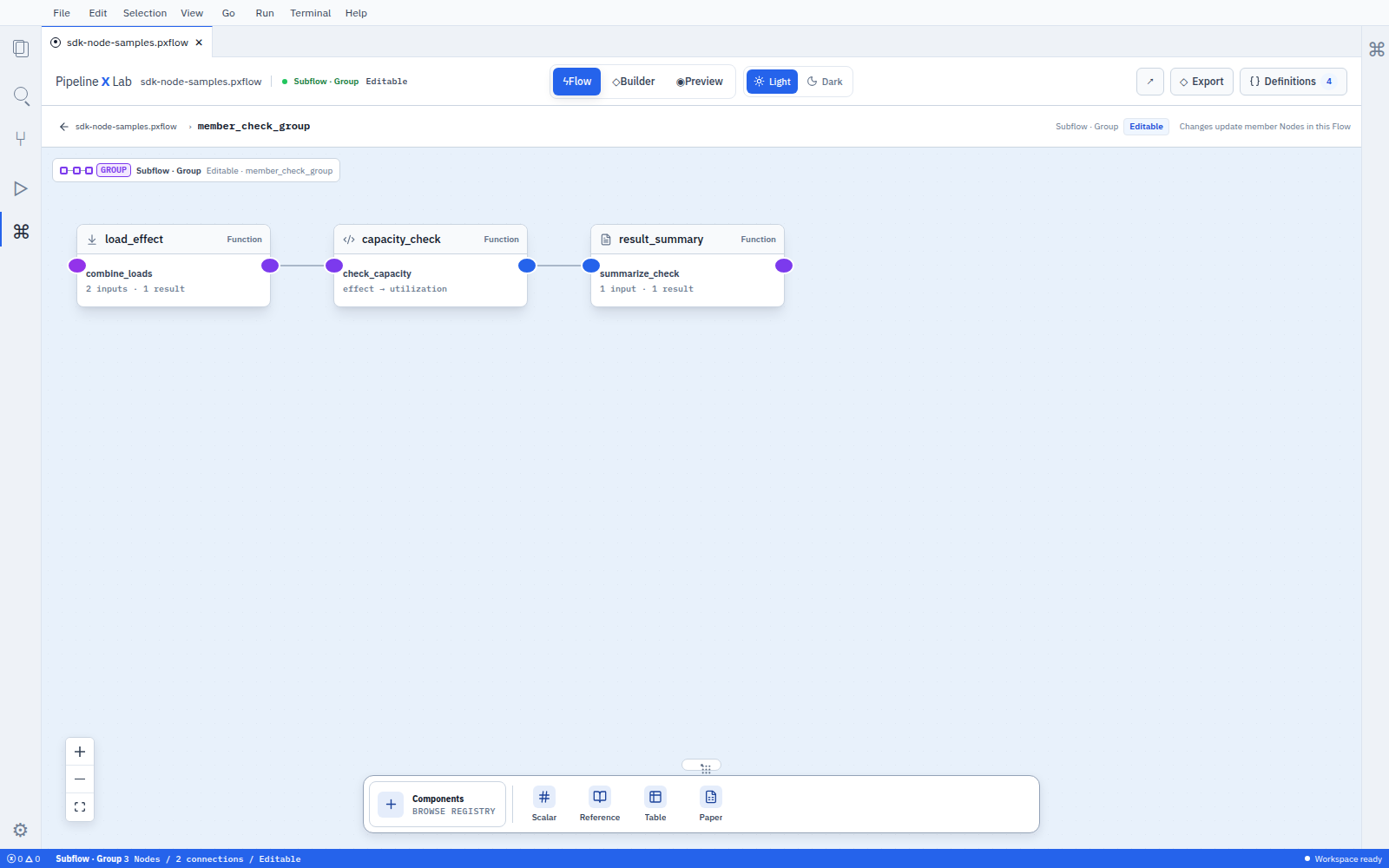
The breadcrumb and Editable state identify a Group owned by the current Flow.
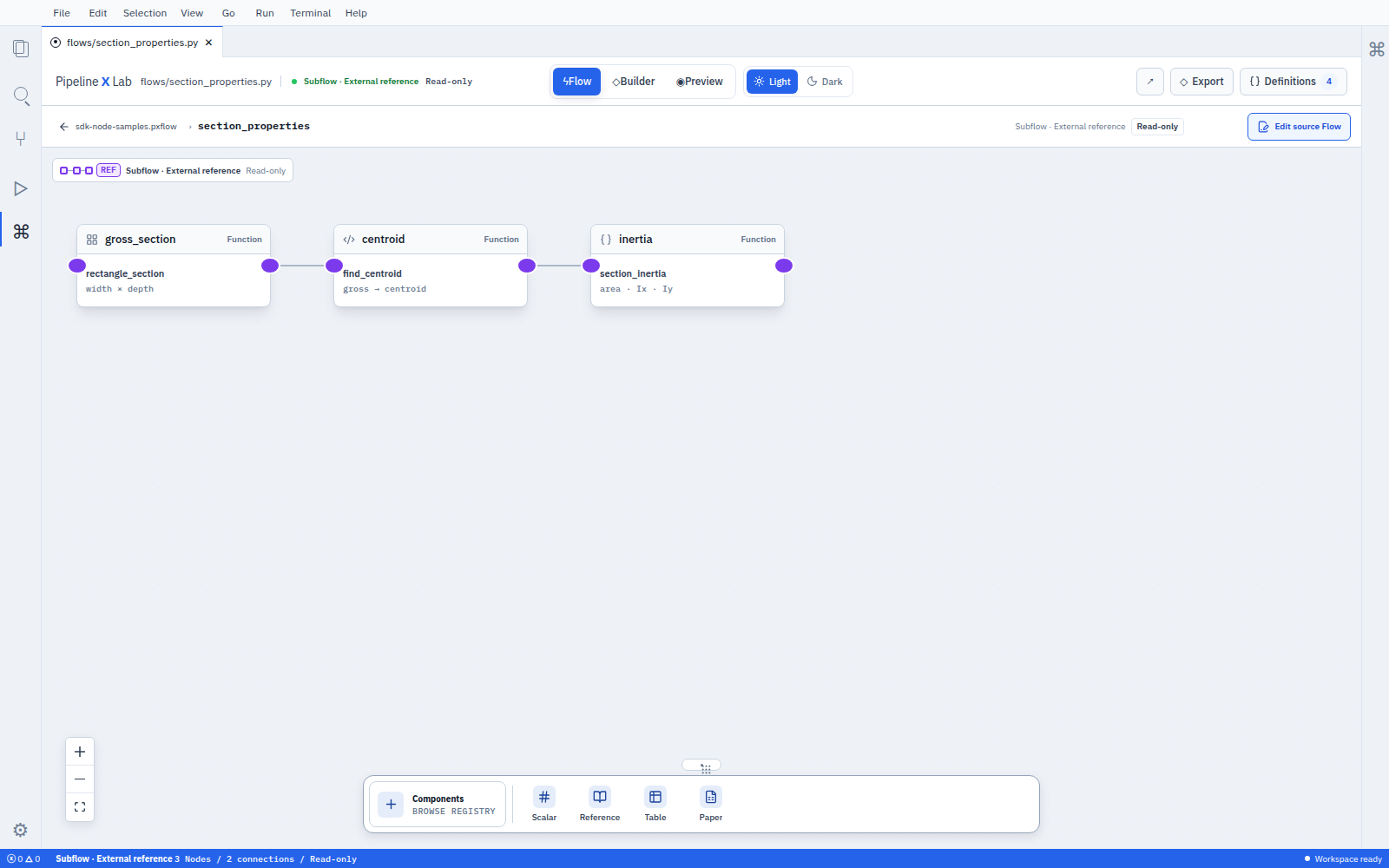
The Read-only state and Edit source Flow action identify the separate Flow ownership boundary.
Both use the same breadcrumb, Back action, and Escape. A Group stores same-Flow editable visual membership while its member Nodes and current Flow retain execution and revision ownership. The Group selection confirmation asks for a stable groupKey and display label; renaming the label later preserves membership identity.
Create the Flow interface
Choose a Node input and select Create Flow input when another Flow, a future host Component surface, or user should provide that value. Choose a Node result and select Create Flow result when it must be available outside this Flow.
These actions edit the typed interface and binding in the direct Flow object. Ports declared with connection=False stay within their declared discovery scope.
Validate and save
Validate checks required inputs, keys, cycles, target releases, and type, unit, and shape compatibility. Selecting a diagnostic moves to the exact Node or connection and offers a supported next action.
Save creates a new immutable revision. Layout-only changes stay separate from execution meaning. If another user saved first, Studio shows the latest revision and the conflict before applying anything.
Run and inspect results
Run pins the saved revision and current validated inputs. Capability or effect approval appears before execution. Node status and the Run panel show progress; completed named results point to an immutable stored result (ResultSnapshot).
A started Run keeps its pinned revision. Save a new revision and start a new Run to calculate changed logic.
Compare the draft with a Run
When a Run read service is connected, Data/Results and canvas result viewers share the selected Run and show whether its submitted inputs match the current draft. Editing inputs preserves the stored results; start another Run to calculate with the changed inputs. Numeric spelling such as 8 versus 8.0 is compared as a value of the declared type.
Opening an earlier Run does not replace the draft. Choose Use these inputs to copy its submitted values. Unreadable submitted inputs show an unavailable notice instead of a comparison. Layout saves preserve the draft while its input contract stays the same; changing Project or input contract resets it. Draft recovery after a browser reload is not yet supported.
Open an SDK-linked Flow
pxlab studio open . --flow girder_reviewPython source remains the authoring owner. Studio converts supported visual edits into a source diff, shows the impact, and applies the edit only when rematerializing the source produces the same Flow. Cancel preserves both source and Canvas. Unsupported edits require a code change or an explicit PXFLOW-native copy.
Recover an unavailable target
Studio currently preserves the exact seven-field target identity, Node, connections, raw settings, and usage-derived partial ports when a Component package is unavailable. It does not store a full last-verified contract snapshot. The production reader shows a read-only unsupported diagnostic.
Current recovery stops there and does not edit or execute the Node. It can retain exact original package bytes only when the package artifact owner actually preserved them. Add/Install exact package, revalidation, and execution are successor actions. Exact ProjectScope data-path isolation is implemented, but those actions remain disabled until Project authorization and execution-trust closure are implemented. No last-verified full-contract snapshot is stored or promised.
Continue
- Getting started
- SDK and PXFLOW Studio
- Component authoring and container boundary
- Runs, results, and recovery
Viewer edits with an unconfirmed save
A server or gateway failure after saving a viewer can leave the outcome unknown: the edit may already have been committed. Use Check the same request to resolve the original request. A denied check leaves the first save outcome unknown. Keep that request pending and check its original result. After a successful reply, the saved revision opens and the edit has one Undo entry. With a verified server identity, browser storage, and Web Locks, unfinished viewer requests are retained in this browser. After a refresh, return as the same user to the same Project and choose Check the same request; restore does not apply automatically. A recorded success offers Open saved version without another Apply. The recovered edit has Undo, but the full session history and unsaved form fields are not restored. Clearing browser data or moving to another device does not preserve this recovery record.
Component placement and connection edits also retain an unconfirmed request when a later check is denied. Once the same request returns a successful receipt, the saved revision opens. A definitive refusal of the first save keeps the usual error and cancellation actions. With a verified server and browser recovery storage, Component placement and connections also restore the original request after a refresh. Another tab's unfinished Flow change is not overwritten. If the record cannot be read, use Check saved Flow request. Restoring it does not apply the change automatically.
If saving succeeds but the Flow cannot reopen, use Reopen saved Flow. For both Component placement and connection edits, this reads the confirmed revision without submitting the edit again. Dismiss only closes the notice; it does not undo the saved change. A success whose revision has not yet been read remains in browser recovery storage for the next opening.
On the formal server, Flow authoring requires Project grants in addition to an operation credential and membership in the target Workspace. Reading the current head requires read access; Plan and Apply require both read and write access. Revoking a grant can also deny a check of an earlier receipt. That refusal leaves the original save outcome unknown; retain the unconfirmed request.
When the server supports verified user metadata, the authoring connection stays bound to that user. Switching accounts then causes edits and request checks on the existing connection to be refused. Do not resubmit an unconfirmed request as a new edit under another account. Servers without this metadata retain explicit editing but cannot provide a verified owner for durable recovery. Browser recovery currently covers viewer edits, Component placement, and connections. Report save recovery remains separate.